Writing Your Specifications
You can provide specifications in three ways: Markdown (editable in the app), PDF or documents (uploaded files), or Jira (after configuration). You can also generate a specification breakdown from the header.
1. Select Specification
- Navigate to the Specification section from the side navigation bar.
- Choose the specification you want to view or work with:
- Markdown — Select a Markdown file from your repository.
- PDF / Documents — View or manage uploaded files (supported: PDF, DOC, DOCX).
- Jira — Use specifications from Jira (requires Jira configuration below).
2. Provide and Manage Specifications
Markdown
- The content of the selected Markdown file appears in the editor window.
- Write or update your specification directly in the editor.
- To save your changes, press Cmd + S (Mac) or Ctrl + S (Windows/Linux).
- Edits are saved to your repository — your Markdown file is updated in the connected repo.
Tip: Save frequently so CodeValid analysis stays up to date.
PDF and Documents
- Upload new documents — Add new specification files (PDF, DOC, or DOCX) from the Specification section.
- Delete existing documents — Remove documents you no longer need from the same area.
- Supported formats: PDF, DOC, DOCX.
Jira
- To use Jira as a specification source, you must configure Jira (see Configure Jira below).
- Once configured, you can use data from Jira as your specification source.

3. Generate Specification Breakdown
After writing or updating your specs, you can generate a Specification Breakdown:
- In the header, find the button next to the branch selector.
- Click it to generate the specification breakdown.
- CodeValid analyzes your specification and produces the breakdown.
- Monitor progress under the Assistant section; the Specification Breakdown section updates when done.
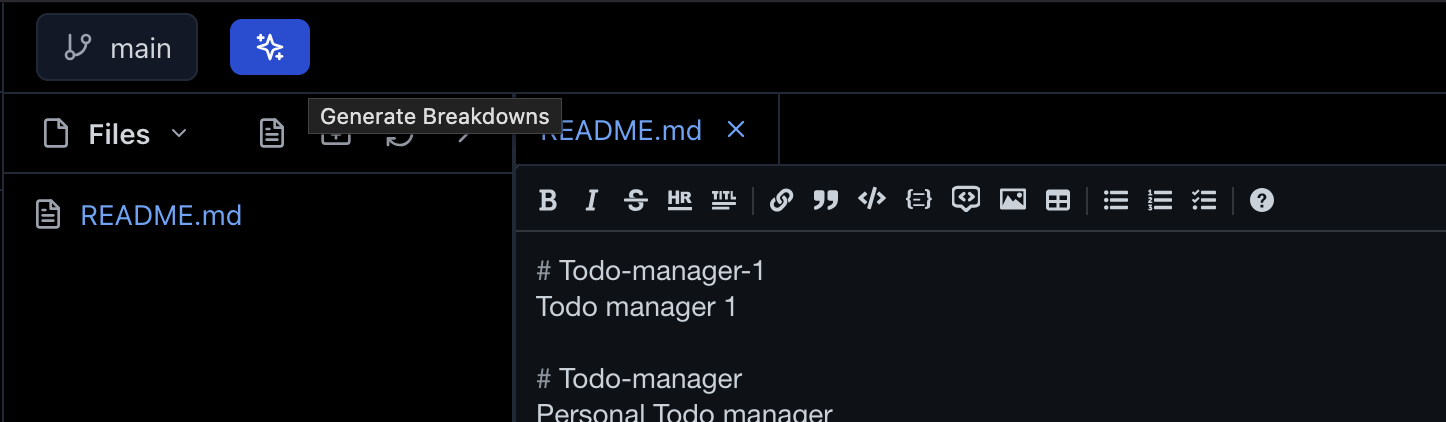
Tip: Use this button whenever you want to refresh the breakdown after changing Markdown, uploading documents, or syncing from Jira.
4. Configure Jira (Optional)
To use specifications from Jira:
- Open Settings or the integration area where Jira is configured.
- Enter your Jira connection details (URL, credentials or API token, and project/board as needed).
- Save the configuration.
- Return to the Specification section and select Jira to use Jira data as your specification source.
Once configured, Jira data is available alongside Markdown and uploaded documents.
Best Practices for Writing Specifications
Note: To get the best results from CodeValid, follow these guidelines when writing or supplying specifications:
-
Focus on app functionality — Write specifications that clearly describe the behavior and functionality of your application: features, user flows, business rules, and expected outcomes. The more accurately your specs reflect what the app does, the better CodeValid can generate and maintain tests that match your product.
-
Include third-party integration details — If your app integrates with external or third-party systems (APIs, payment gateways, identity providers, etc.), include API reference and integration documentation in your specification set. This helps CodeValid understand contracts, endpoints, and integration behavior so it can generate and maintain tests correctly for both your code and the external interfaces.